
Financial Crooks

An Honest Crooks Shares Financial Tips and Investing Experiences

Main menu

Skip to primary content
Skip to secondary content
  • Financial Planning
  • Self Directed Investing
  • BMO IL
  • CIBC IE
  • RBC DI
  • Free $$$

Author Archives: BetCrooks

Post navigation

← Older posts
Newer posts →

How to Connect a Tangerine Account to a Bank Account at Another Big Bank

Posted on 2014 06 09 by BetCrooks

I set up my Tangerine Savings Account, over 7 years ago when it was called an ING Direct Investment Savings Account, and I linked it to my regular chequing account at a Big Canadian Bank. Recently, I decided to link it to a joint chequing account my husband and I have at a different Big Canadian Bank. I want to be able to move my money overnight from the Big Bank to the Tangerine account even though they will put a hold on the money once it lands at Tangerine. I could move the money by writing a cheque on the joint account and using the Cheque-In photo deposit app to cash it into my Tangerine Chequing Account. But I’d prefer not to waste a paper cheque, since the Big Bank charges us for each paper cheque even if it doesn’t charge us to use one. And I’d prefer the money to go straight to my savings not route through the Tangerine chequing account. So today I decided to connect my Tangerine Savings Account to this joint chequing account at the Big Bank.

How Many Bank Accounts at Other Big Banks Can I Link to my Tangerine Account?

According to the Tangerine website as of June 2014, you can link your account to up to 3 bank accounts at other financial institutions.

I know that there are many bargain hunters who link to PC Financial and periodically transfer all their savings from one to the other to benefit from short-term-interest-rate bonus incentives. Personally, I haven’t bothered with that. Yet. ; )

What Info Do I Need to Link my Bank Account to Tangerine?

For your account at a Big Canadian Bank (or other financial institution) you’ll need to know

  • the transit number
  • the bank number
  • the account number
  • whether it’s a US or Canadian dollar account

What’s my Bank Number?

Well, if you have a chequing account this is easy to check. (Pun intended.)

At the bottom of your cheque is a serious of odd marks with numbers between them. If you squint at them for a while, you’ll realize that near the beginning 5 of them are your bank account’s transit number. Then there is an odd dash that is divided up into a few segments. Then there is a 3-digit number. That’s your Bank Number. Then there’s another symbol, mine looks like neutral Smiley face. Then there is your bank account number.
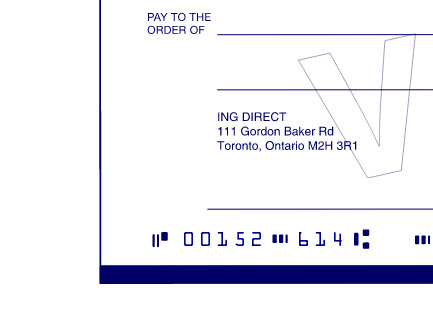
Photo of Corner of ING Direct Cheque

In this ING Direct cheque, the transit number is 00152 and the bank number is 614. (You didn’t really think I was going to include my account number too, did you?)

If you don’t have a chequing account, or if you can’t decipher your cheque, you can
ask your bank what its Bank Number is; or
check online lists.

Common Bank Numbers in Canada

Some common Banks have the following Bank Numbers:

  • Bank of Montreal: 001
  • The Bank of Nova Scotia: 002
  • Canadian Imperial Bank of Commerce: 010
  • Royal Bank of Canada: 003
  • The Toronto-Dominion Bank: 004

You can see that either BMO invented these numbers or that CIBC was a very late arrival on the Canadian banking scene when it started as the Canadian Bank of Commerce in  1867.

Do I Need to Send in a Cheque to Link to my Tangerine Account?

No.

You don’t need to send in a cheque to link an account if you already have your Tangerine account set up BEFORE you try to make this connection.

For example, when I first opened my Tangerine Savings account I sent in a cheque from my Big Bank chequing account to link the two. Now, though, I am linking to a different account at a different Big Bank without sending in a cheque.

Linking a Tangerine Savings Account to a Big Bank Joint Chequing Account

Sign In to Tangerine

  1. Open your browser and go to www.tangerine.ca
  2. Click on the link: I’m a Client, let me in!
  3. Type the appropriate info in the Enter your Client Number, Card Number or Username text field.
    Never click to select Remember me. Why would you want to give a criminal half of the info they need to break into your account?!
  4. Click on the Go button.
  5. Type the answer to your secret question in the Answer text field.
  6. Click on the Next button.
  7. Type your PIN in the Personal Identification Number text field.
  8. Click on the Go button.

Add the New Account to Your List of External Accounts

UPDATE: October 1, 2017. Tangerine has revised its website, so I’ll have to revise my procedures!

  1. Click on your abbreviated name at the top right side of the screen.
  2. Click on Profile & Settings.
  3. From the links across the top of the Profile & Settings page, click on: External Accounts.
  4. Your existing account links are displayed.
    If, like me, you already have 3 accounts linked you cannot add another! Fortunately, I have an account linked which I do not need any more. So I will permanently remove that link. To remove the link, I will click on the Delete button for that line.I read the warning about possibly breaking an Pending Transfers. Then clicked on the Delete button again. A confirmation message is given with the Transit and Account numbers but not the Institution number. Weird. I clicked on the Done button.
  5. Click on the button Add account button.

The Add External Account Page

  1. Read through the information.
  2. If you’re willing to go ahead
    • Type the transit number for your Big Bank account in the text field: Transit number
    • Type the number for your Big Bank or Credit Union etc, in the text field: Institution Number (yes, this time they capitalized Number)
    • Type the account number for your Big Bank or Credit Union etc. account in the text field : Account Number
    • Type the account number for your Big Bank or Credit Union etc. account in the text field: Re-enter Account Number to Confirm
    • Ensure the correct currency, Canadian or US dollars, is selected for that external bank account.
  3. Click to select the box beside the statement “I confirm that the information provided above is for a personal bank account in my name” if and only if you are trying to link to your own personal account and not that of a friend, relative, business or other entity. You cannot use this page to link to anyone’s account except your own personal account.
  4. Click on the Next button.

The Review the External Account Information Page
Cool!

A pop-up window lists the bank name and address for our joint chequing account at the Big Bank. It’s correct too!

  • If the details are correct, click the Submit button.

The Account Added Page

Read the info.

Basically it says sometime in the next two business days, Tangerine will deposit two small amounts of money into my external/Big Bank bank account. I have to write down those amounts, then log in to Tangerine and report what they were. If I get it right, they will finalize connecting the two accounts. (This is what Google does too, when you tell them where to deposit your pay from AdSense.)

Click on the Done button.

I can also see that beside the listing for my Big Bank account, which has been added to my list of external accounts, there is a Cancel button.

It should switch to a Confirm button after they have sent me the deposits. I’ll need it after they deposit the money in my account.

For now, though, I’m done.

Sign Out of Tangerine Safely

  • If you have no other banking, under your abbreviated name, click on the Log Out link.
  • For increased security, clear your browser cache and close your browser session.

Check Your Email Alerts

I received an email notification that I had requested to add a link to a new external bank account.

Start Checking and Waiting (Beware: Sexist Content Included)

Start checking your Big Bank or Credit Union etc bank balance hourly to see if Tangerine has made the two test deposits yet.

Note: realistically the deposits will be credited when your account file is updated overnight. So you only need to check once per day. If they are not there yet, they won’t be until at least the next day.

As one of my more annoying teachers in Grade 8 used to say: “Patience is a virtue; possess it if you can; found seldom in a woman; and never in a man.”

How’s that for sexist! And it was a He who kept quoting this.

Related Reading

  • How to Open a Tangerine Chequing Account
  • How to Confirm the Link and Transfer Money Between Your Tangerine Account and Your Other Bank Account

Join In
Have you connected your Tangerine account to the maximum 3 other external bank accounts? Do you send your money flying through the electronic ether on a daily whim? Or do you prefer to shuffle your money with a paper trail and always use a cheque to move it from one account to another? Please share your opinions with a comment.
image of thin green double line


Posted in Finances, Money Tips | Tagged Bank of Montreal, Bank of Nova Scotia, banks, BMO, Canadian Imperial Bank of Commerce, cheques, CIBC, connect, credit union, external bank account, ING Direct, link, RBCDI, Royal Bank, savings, ScotiaBank, Tangerine, TD, Toronto-Dominion Bank

How to Check Your RRSP Contributions Using the CRA My Account Website

Posted on 2014 06 06 by BetCrooks

A few weeks ago, I signed up at the CRA website to use My Account. After I got my security access code in the mail, I could sign in to the detailed information. Out of curiousity, I reviewed my TFSA contribution history. Today, I started thinking about our RRSPs. We’ve been contributing since we started working, shortly after the last dinosaurs were driven out of the Alberta Badlands because the hikers resented tripping over their bones all the time. To say I have no idea what my cumulative lifetime contributions have been is an understatement. So I signed in to the CRA My Account website to see if I could find what my total RRSP contributions have been.

Does the CRA My Account Website Have a Succinct Pithy Summary of My RRSP Contributions?

No.

At least I couldn’t find one.

The My Account site lists how much you contributed including transfers in and repayments of the LLP and HBP for most years. However, this information is included in a web page with other data so you have to pick it out visually from the clutter. And you have to subtract the transfers and repayments yourself.

This is a bit surprising as the same site does provide a neat, complete summary of TFSA contributions.

How Can Someone Not Know How Much They’ve Contributed to Their RRSP?

Well you efficient organized people won’t understand this but some of the rest of you might.

So far I’ve invested (ha!) RRSP money at

  • 2 big banks
  • 1 internet bank
  • 1 government Canada Savings Bond RRSP program

in

  • GICs
  • Canada Savings Bonds (I contributed the bonds “in kind” to make our annual contribution)
  • Daily interest savings accounts
  • Index mutual funds, when they were a new invention

Gradually, I’ve been rounding up all of these investments and shifting them to a couple of online discount brokerages (BMO InvestorLine and RBC Direct Investing.)

(I’ve always kept track of how much unused RRSP contribution room I have but I haven’t kept a deliberate running total of what I contributed.)

I could check my contributions from my tax returns. In fact, some where on the half-dead not-connected-to-the-internet computer, the numbers are probably already tabulated for my contributions, though not my husband’s. I just think it might be simpler to see what the CRA thinks I’ve done.

You can check your RRSP contributions, too. Here’s how.

Checking Your RRSP Contributions Online Using the CRA My Account Website

First, you must have a CRA My Account user ID and password set up. (I wrote up how to get one in this article.)

Go the My Account for Individuals website at http://www.cra-arc.gc.ca/myaccount/

Sign in to your CRA My Account

  1. Click on the CRA Login button.
  2. In the User ID: field, type your id.
  3. In the Password: field, type your password. This is not your CRA security code. It’s the password you picked before you got that code in the mail.
  4. Answer the security question and click Continue.
  5. If the date and time of last access is correct, click Continue
  6. Click the RRSP and savings plans tab.
  7. Click the RRSP link.

The RRSP Page

Hmmm. I’m not sure if any of these links leads to what I want to know. I’ll have to try some.
The “Calculation of 2014 RRSP deduction limit” and the “Calculation of your 2013 unused RRSP contributions” don’t sound promising but I’ll still look at them.

It looks like I may have to use several links to get all of the contributions from the past to the previous tax year of 2013. So…

The Calculation of 2014 RRSP Deduction Limit Link Page

Click on the link: Calculation of 2014 RRSP deduction limit

Ok, this has

  • my “allowable RRSP contributions deducted in 2013”
    and
  • my “unused RRSP deduction limit at the end of 2013”

I’ll need both those numbers if I was carrying forward an unclaimed deduction (not an unclaimed contribution; an unclaimed deduction) and/or if I made a contribution in 2013 but didn’t deduct it, thus increasing my unused RRSP deduction limit at the end of 2013.

Unfortunately, neither number reports my actual “contribution” made in 2013.

If I carried forward some RRSP contributions and deducted them in 2013 they will make it look like I contributed more in 2013 than I actually put in.

And, if I decided not to deduct all of the RRSP contributions I made in 2013 but instead decided to carry some forward to 2014 or beyond, I can’t simply see how much new money went into my RRSP in 2013.

Next, I’ll check another one line wonder.

The Prior Year RRSP Deduction Limits and Calculations Link Page

Click on the link: Prior year RRSP deduction limits and calculations

This should have the data for 2012.

Actually, it has data for many years. For each year it lists:

  • that year’s RRSP deduction limit
  • that year’s unused RRSP contributions

Those are the ones you have contributed but have not yet deducted.

So this is of limited value for what I’m trying to do today.

OK, how about a third one line wonder?

The Calculation of Your 2013 Unused RRSP Contributions Link Page

Click on the link: Calculation of your 2013 unused RRSP contributions

Ah ha! One of the lines here is “2013 contributions” (including transfers)

It should probably also say (including HBP and LLP repayments) because those are subtracted in the following two lines.

So if you made a transfer from a spouse’s RRSP into your own (usually because of a divorce), you’ll have to know how much was transferred so that you can calculate how much of your own money you contributed in 2013.

Next, I’ll check another link, the “Prior year RRSP contribution history”

The Prior Year RRSP Contribution History Link Screen

Click on the Prior year RRSP contribution history link.

4 pages. That seems more promising.

The pages show the following for each year (for 2012 in this example):

  • 2012 RRSP Contribution History
  • Unused RRSP contributions available for 2012
  • Plus: 2012 contributions (including transfers)
  • Minus: 2012 HBP or LLP repayments
  • Minus: 2012 deducted contributions (including transfers)
  • Unused RRSP contributions available for 2013

Note: Those “transfers” likely are things like transferring some of your RRSP to a spouse due to a divorce. I can see they don’t mean transfers between financial institutions in your own name, because there is no data for my moves from one bank to a brokerage.

So I’ll still have to type out some numbers to find my total lifetime contributions to my RRSP. Pardon me for a minute while I open Excel.

Sorry about that delay. I did warn you that my history goes back to just shortly after the Burgess Shale was laid down.

So from the CRA website, for each year, I input my contribution (including transfers) and my HBP or LLP repayment and then calculated my contribution that was not a repayment. Fortunately, my husband is still tolerating me, so I didn’t have to deduct any transfers. This was not an ideal way to get at the data for which I was looking.

Anyway, to my dismay I found the CRA data only goes back to 1992. Rats. So I still have to boot up Ol’ Trusty or pull my old tax returns.

So for you young un’s or late starters, the CRA data may be useful. For us ol’ timers it has limited value.

Why Does the CRA My Account RRSP Data Not Go Back Before 1992?

Well, hating to admit it, it’s probably because of when computers became integral parts of our lives and jobs.

Believe it or not, in the 1980s there was no modern-day internet. Home computers were considered a bit silly: you could type out your recipes, and create a simple Lotus 1-2-3 spreadsheet. It wasn’t until the 1990s that you could play Duke Nukem and even Leisure Suit Larry wasn’t coded till 1987.

I’m not sure when the CRA started digitizing all of its tax returns but it’s looking suspiciously like 1992. I wonder how big the push was to get and start using PCs once the Duke was available to play at lunch time? It probably took about a year to convince management…..

Another Way to Get My RRSP Contribution History from the CRA My Account Website

  1. Sign in to your account.
  2. Click on the Tax Returns tab.
  3. Click on the View Returns link.
    Double rats. They only have links to my returns from 2003 to 2013.
  4. Click on the link for the return of interest.
    Check

    • Line 208 for your RRSP deduction
    • Line 245 for the Total contributions made to your RRSP or your spouse or common-law partner’s RRSP
    • Line 246 for the RRSP contributions designated as a repayment under the HBP
    • Line 262 for the RRSP contributions designated as a repayment under the LLP
    • Hopefully they will also show Line 240 Transfers but I can’t check since I don’t have any transfers to look up.

    NOTE: if one of the lines is not applicable to your return, it will not be shown. So if you didn’t make a HBP repayment, there won’t be any Line 246 to look at.

So looking at your returns online is one way to tally up your RRSP contributions IF you only have been contributing for 10 or fewer years.

This appears to be a 10 year “rolling” list. So in 2015, I expect you’ll only be able to look at returns for 2004-2013.

Always Leave the CRA My Account Website Safely!

  1. Click on the Logout button.
  2. Click on the Exit button.
  3. Clear your cache and close your browser session.

Related Reading

  • How to Get Access to the CRA My Account Website
  • How Can I Roughly Estimate the Return on my RRSP Contributions?

Join In
Have you kept meticulous track of every cent you’ve contributed to your RRSP? Or have you only kept a vague eye on your initial investment numbers so as not to despair too much about your overall low rate of return? Please share your experiences with a comment.

Posted in Finances, Money Tips | Tagged contributions, CRA, CRA My Account, HBP, LLP, My Account, RRSP, RRSP transfers

Post navigation

← Older posts
Newer posts →

Recent Posts

  • Can I Withdraw Cash from my BMO RRIF Even Though My GIC Has Not Matured?
  • How to Transfer Money from Your BMO Bank Account Into Your InvestorLine Non-Registered Investment Account
  • How to Contribute Cash to a BMO InvestorLIne TFSA from a BMO Bank Account
  • How to Redeem Your IHG Points Before They Expire If You Do Not Have Many
  • Where Should I Buy My RRSP GICs in My Brokerage Account or At a Bank or Credit Union?

Financial Crooks Contents


Bank Accounts

BMO InvestorLine Info

Bonds

Bonuses and Free Stuff

Books

Budgets

Cash

CIBC Investor's Edge Info

CPP

Charity and Helping

Credit Cards

Dividends

Equities

ETFs

Fees

Financial Planning

GICs

GIS

Income

Money Tips

Mortgages

Mutual Funds

OAS

PC Financial Bank Articles

RBC Direct Investing Info

RESPs

Retirement

Reviews

RRSPs

Rules

Savings and Secure Investments

Self Directed Investing

Shares

Simplii Financial Bank Articles

Tangerine Bank Articles

Taxes

TFSAs

More Great Crooks!

Computer Crooks
Helpful Crooks
Natural Crooks
image of thin green double line

© 2012-2021 financialcrooks.com

About Us

Contact Us

Disclaimer

Privacy Policy